
What is AI texture generation?
The short answer
AI texture generation is the use of image-generation models to create textures for 3D models from a description such as rusted steel panel with chipped yellow paint, or from a reference image. Instead of painting a texture by hand, photographing a surface, or building a node graph, you describe the result and the model produces it in seconds. Good AI texturing tools then turn that color image into a full PBR material, with normal, roughness, and ambient occlusion maps, so it can be used in Blender, Unity, Unreal Engine, or Godot.
What an AI texture generator is
The phrase AI texture generator covers two different kinds of tools, and it helps to know which one you need.
Tileable material generators
These create square, seamless textures, like an on-demand material library: brick, grass, marble, sci-fi panels. You apply them to floors, walls, and terrain using tiling UVs or triplanar projection. They know nothing about a specific model.
Model-aware texture generators
These texture one particular object. They take information about the model, such as its UV layout or rendered views of it, and produce a texture that fits that object, so a chair's legs, seat, and back each receive appropriate detail. Some tools project images from several camera angles back onto the mesh; others, including TextureFast, paint directly in UV space. Text-to-3D tools such as Meshy or Tripo generate a mesh and its texture together, which is a different job from texturing a model you already made.
How AI texturing works, step by step
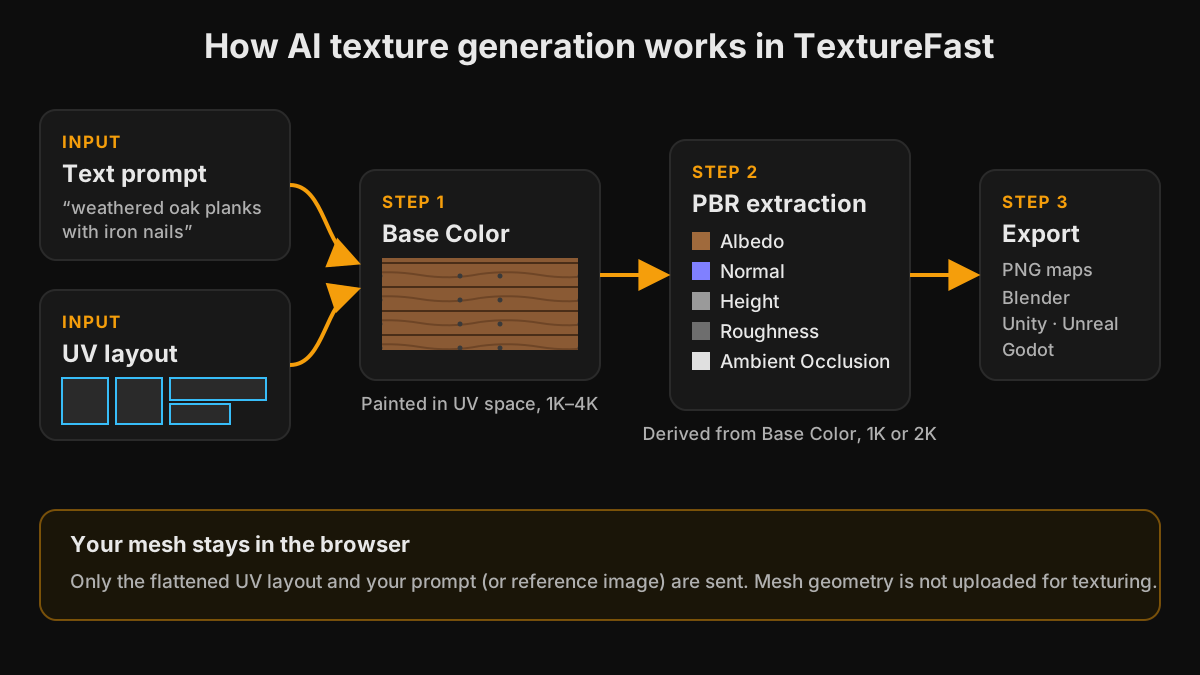
- Input: you write a prompt such as weathered oak planks with iron nails, or upload a reference image that is converted into a prompt. A style preset such as AAA Photorealistic, Handpainted, or Pixel Art steers the look, and prompt expansion can add material detail to short prompts.
- Guidance: the model's UV layout is rendered as a flat image. It shows the generator where every part of the model sits in texture space, so the result lines up with the geometry.
- Generation: an image-generation model paints the Base Color into that layout, at 1K to 4K depending on your plan.
- PBR extraction: in the PBR Material tab, further processing estimates Albedo, Normal, Height, Roughness, and Ambient Occlusion maps from the Base Color at 1K or 2K.
- Export: the maps download as PNG files, individually or as a zip, ready for Blender, Unity, Unreal Engine, Godot, or a glTF pipeline.
Under the hood, image-generation models learn statistical relationships between words and visual patterns from very large image collections. They do not look up a stored texture; they synthesize a new image guided by the prompt and, in model-aware tools, by the layout they are given. That is why the same prompt can give different variations, and why a precise, descriptive prompt matters.
Your mesh stays in the browser
TextureFast opens your model locally with three.js. Only the flattened UV layout image and your prompt, or your reference image, are sent for generation. The mesh geometry is not uploaded for texturing, which matters when you work on unreleased game assets or client models under NDA.
What AI texturing is good at
Speed is the obvious benefit: a Base Color takes seconds instead of the hours a hand-painted texture can take. That changes how you work. You can try several looks for a prop before committing, create color and wear variations of the same asset, and texture dozens of background props that would never justify an artist's time. Style presets keep a set of assets visually consistent, and people without painting experience can get usable results on their first day.
Where it falls short
AI texturing is not a replacement for every texturing task. Exact placement is unreliable: a logo, readable text, or a scratch in one specific spot is better painted by hand. Seams can show where UV islands meet, and tiny islands receive little detail. Normal and height maps extracted from a color image are estimates, so large forms are still best modeled or baked from a high-poly source. Results vary between generations, so expect to regenerate occasionally. In TextureFast, Metallic extraction is still marked coming soon.
AI texturing vs traditional texturing
Traditional texturing gives complete control. An artist decides where every scratch, stain, and decal goes, and bakes normals from real geometry. The cost is time and skill. AI texturing reverses the trade-off: you give up exact placement in exchange for speed and volume. In practice the two work well together. Many teams generate a first pass with AI for every asset, keep what works, and spend artist time only where the camera will linger.
Common uses for AI texture generation
- Game props and environment dressing: crates, barrels, furniture, and debris that need believable materials but not hand-placed detail.
- Prototypes and pitches: textured models for a vertical slice or client presentation before final art exists.
- Architectural visualization: unique furniture, decor, and props alongside tiling surface materials.
- Roblox clothing: shirts and pants generated for the Roblox clothing templates.
- Counter-Strike 2 skins: weapon finishes previewed on the weapon model before Workshop preparation.
- Variations: several colorways or wear levels of the same asset from one model.
How to get better results
- Start with clean UVs: large islands for visible parts, seams on hidden edges, and consistent texel density. Check the layout in the free UV map inspector first.
- Name the materials and their condition: brushed steel frame, cracked black leather seat, worn edges works far better than cool chair.
- Leave lighting out of the prompt for PBR work. Words like dramatic lighting push shadows into the Base Color.
- Pick the style preset that matches your project before fine-tuning the prompt.
- Iterate on the Base Color until it is right, then extract PBR maps. Each extracted map costs tokens, so extract once from the version you keep.
- Finish hero assets in Substance 3D Painter, Blender, or Photoshop when you need decals or exact details.
Ready to try it?
Open the matching TextureFast workflow
Continue from this answer into the public workflow page, then start generation or compare plans when you are ready.