
What is an albedo or base texture or diffuse?
The short answer
Albedo, base color, and diffuse all name the texture that holds a surface's color, but they are not quite the same thing. Albedo and base color are interchangeable in modern physically based rendering (PBR): both mean the pure color of the material, as if it were lit evenly from every direction, with no shadows, highlights, or reflections. Diffuse is the older name. Classic diffuse maps often had lighting painted in, because older engines could not compute it. If you use a diffuse map like that in a PBR engine, the lighting is applied twice and the model looks dirty, flat, or wrongly lit.
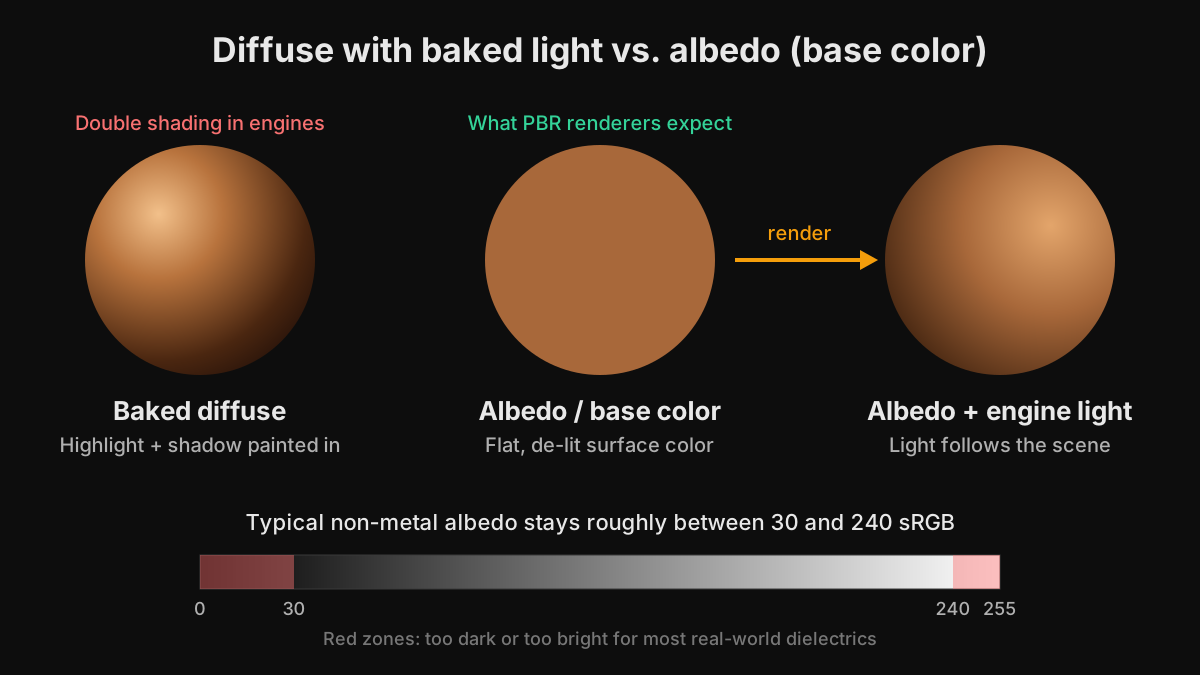
Albedo, base color, and diffuse side by side
Albedo
In physics, albedo is the fraction of light a surface reflects diffusely. Fresh snow has a very high albedo; charcoal has a very low one. In texturing, an albedo map is the surface color with all lighting removed. Artists often use albedo when talking about the concept and base color when talking about the input slot.
Base color
Base color is the name used by the metallic-roughness PBR workflow. You will see it as Base Color in Blender's Principled BSDF and in Unreal Engine materials, baseColorTexture in glTF, Base Map in Unity URP, and Albedo in Unity's built-in Standard shader. For non-metal surfaces it is exactly the albedo. For metal surfaces, which have no diffuse color, it stores the color of the reflection instead, which is why gold looks yellow and copper looks orange.
Diffuse
Diffuse comes from older pipelines and from the specular-glossiness PBR workflow. In legacy games, diffuse textures commonly included ambient occlusion, soft shadows, and even highlights, because the engine had only simple lighting. In a correct specular-glossiness material, the diffuse map is albedo for non-metals and black for metals, with the metal's color stored in the specular map instead.
Why baked lighting breaks PBR materials
A PBR engine calculates shading from the scene's lights, the environment, and the roughness and normal maps. A highlight painted into the base color never moves: rotate the model or move the sun and the painted highlight stays in the same place while the real one appears somewhere else. Painted shadows stack on top of the engine's own shadows and ambient occlusion, so crevices become far too dark and the whole object looks grimy. Light bounced from a baked-in-shadow surface is also wrong, which affects the colors of everything around it.
There is one deliberate exception. Stylized hand-painted games, and mobile games that use unlit or very simple shaders, often paint lighting into the color texture on purpose. That is a valid art direction as long as the material is not also receiving full PBR lighting.
Albedo values that look right
Real non-metal materials fall inside a fairly narrow brightness range. A widely used guideline, popularized by Adobe's Substance PBR guide, is that the darkest non-metal albedo sits around 30 to 50 in sRGB, similar to charcoal or fresh asphalt, and the brightest sits around 240, similar to fresh snow. Values of pure black 0 or pure white 255 look unnatural under PBR lighting and cause problems with exposure and bounced light.
Metals follow a different rule. In the metallic workflow, a metal's base color is its reflectance and is usually bright, roughly 180 to 255 in sRGB. Iron and steel are close to neutral grey, gold is yellow, and copper is orange. The metallic map decides which pixels are treated as metal, so a bright base color painted on a non-metal area simply looks like a very light material, not like chrome.
How to check and fix an albedo map
- View the map flat, with no lighting. It should look like a photo taken on an overcast day, with no clear direction of light.
- Look for dark contact shadows in cracks and corners. They belong in the ambient occlusion map, not in the base color.
- Look for bright specular spots or rim light. Highlights are the renderer's job and are controlled by the roughness map.
- Sample the darkest and brightest non-metal areas with a color picker and compare them with the 30 to 240 sRGB range.
- For photo-based textures, shoot in soft, even light or use a de-lighting tool such as the Delight filter in Substance 3D Sampler.
- Import the texture as sRGB (Color). Base color and emissive are color images; normal, roughness, metallic, ambient occlusion, and height are linear data maps.
Where the albedo map goes in each engine
- Blender: connect the image to Base Color on the Principled BSDF and keep the image node's color space on sRGB.
- Unity URP: assign it to Base Map on the Lit material. Unity's built-in Standard shader calls the same slot Albedo. The alpha channel can carry opacity or smoothness, depending on the material settings.
- Unreal Engine: connect the texture to the Base Color pin of the material, with sRGB enabled on the texture asset.
- Godot: assign it to Albedo on the StandardMaterial3D.
- glTF and GLB: it is stored as baseColorTexture, and its alpha channel is used for transparency when the material's alpha mode is set to mask or blend.
Base Color and Albedo in TextureFast
Base Color is the first map TextureFast generates. You upload a UV-unwrapped model, write a prompt or upload a reference image that is turned into a prompt, and choose a style preset such as AAA Photorealistic, Handpainted, or Pixel Art. The generator paints the Base Color into your UV layout at up to 4K, depending on your plan. That Base Color then becomes the source for the PBR Material tab, which can extract a separate Albedo map along with Normal, Height, Roughness, and Ambient Occlusion at 1K or 2K.
For PBR work, keep lighting words such as dramatic lighting, sunset, or studio light out of the prompt, because they push shadows and highlights into the Base Color. Describe the material and its condition instead, for example worn red enamel over steel with chipped edges. For a stylized game where painted-in shading is part of the look, the Handpainted preset is a better starting point.
Ready to try it?
Open the matching TextureFast workflow
Continue from this answer into the public workflow page, then start generation or compare plans when you are ready.